
How to Check an Adopt Me Trade From a Screenshot (W/F/L in Seconds)
Most bad trades in Adopt Me are not scams. They are trades accepted too fast. The offer looked about right, the other player was waiting, and nobody added up the pets. A screenshot fixes that, because a screenshot does not go anywhere. You can take your time with it. This guide shows three ways to check a trade from a picture, starting with the fastest, and what to look at once you have the answer.
1. Scan the screenshot with the app
The quickest way is to let your phone read the picture for you. Our free app has a Trade Scanner on its Calculator tab. You give it a screenshot of the trade window, or point the camera at the screen, and it finds every pet on both sides, reads the Neon, Mega, Fly and Ride badges, adds everything up and shows win, fair or lose.
- Take the screenshot. Do it while the trade window is open, with both sides showing.
- Open the app, go to the Calculator tab and tap Scan a trade with camera.
- Tap Screenshot and pick the picture. If you play on a PC or console, tap Camera and photograph the screen.
- Crop it so only the trade window is inside the box, then tap Scan this area.
- Read the result. Your pets are under You give, theirs under You get. Fix any pet with a question mark, and the answer appears.
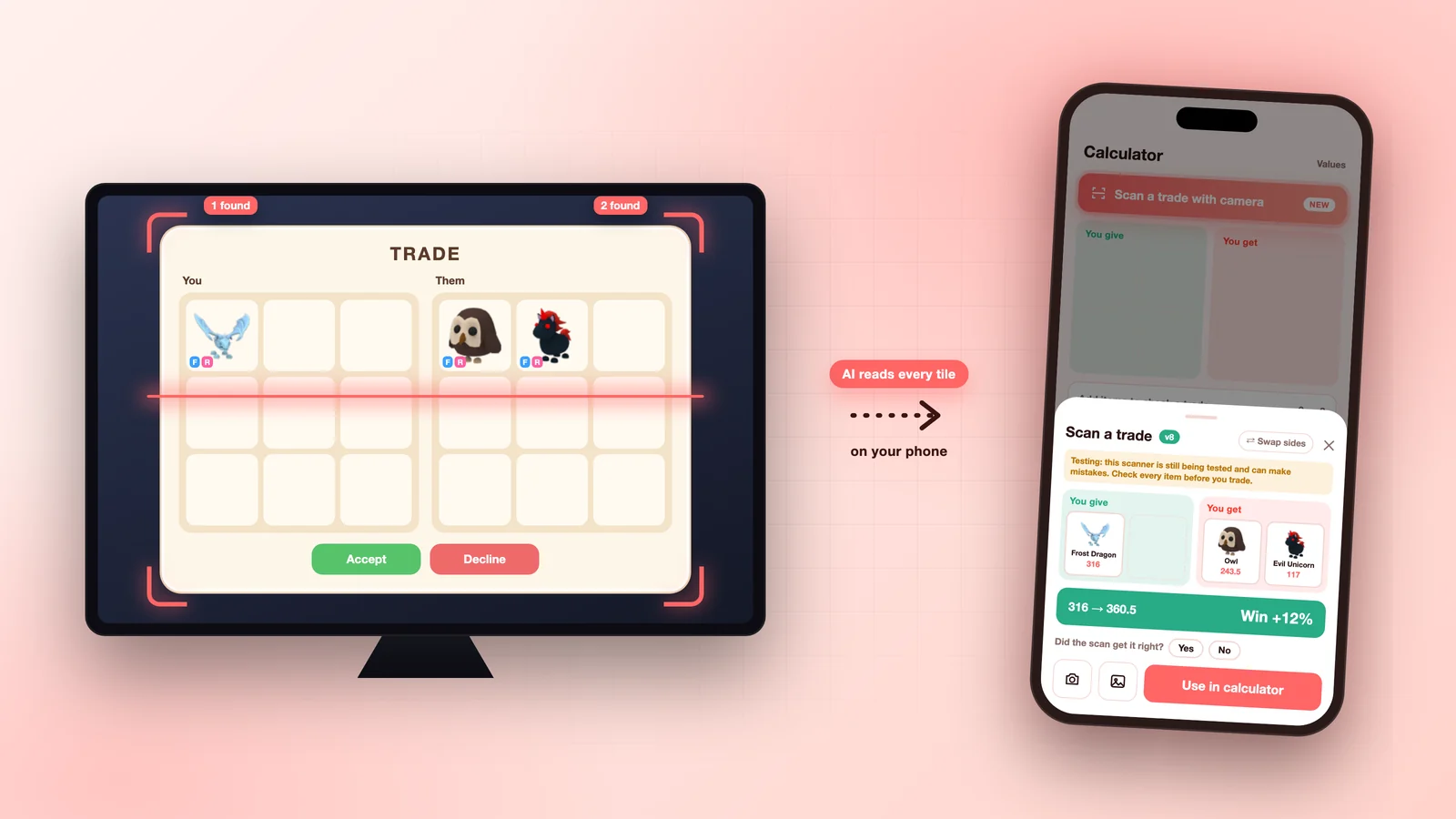
The picture is read on your phone and is not uploaded. The scanner is new and the app says so on every scan, so use it as a fast first check and look over the pets it found before you trust the total. The scanner page has the full walkthrough and the list of things it cannot read yet.
2. Add the pets in the calculator
On a computer, or if you would rather do it yourself, open the trade calculator. Look at the screenshot, add each pet you are giving on one side and each pet you are getting on the other, and set Neon, Mega, Fly and Ride to match the badges in the picture. The calculator adds both sides and shows the result.
This is slower than a scan, and the usual mistake is a missed badge. A Neon pet added as a normal one makes the whole answer wrong. Go through the screenshot one tile at a time and check the small letters on each pet.
3. Do it by hand with the value list
You can also look up each pet on the value list and add the numbers yourself. It works for a simple trade with one or two pets on each side. For a full window with nine tiles a side it is easy to lose count, which is the reason the first two ways exist.
Read the badges, whatever way you choose
The small letters on a pet's tile change its value a lot:
- N means Neon, made from four full grown pets of the same kind.
- M means Mega Neon, made from four Neons.
- F means the pet can fly, and R means you can ride it.
Two trades that look the same in a small screenshot can be very far apart once you read the badges. If the picture is too blurry to read them, ask for a clearer one before you decide. Our guide to Neon and Mega Neon pets explains why the gap is so large.
What to check after you have the answer
A result of win, fair or lose is where your decision starts. Before you accept, ask three more questions.
- Do I want what I am getting? A small win made of pets you do not like, and nobody else asks for, is not much of a win. Pets that many players want are easier to trade again later.
- Is the trade window still the same as the screenshot? A screenshot shows one moment. Some players change a pet for a look-alike at the last second. Read the window again, tile by tile, before you press accept, and again on the confirm screen.
- Is the picture even theirs? A screenshot someone sends you in a chat proves nothing about what they own. Pictures get reused and edited. Only the trade window on your own screen, inside the game, counts. More on this in how to avoid scams.
How to take a screenshot that scans well
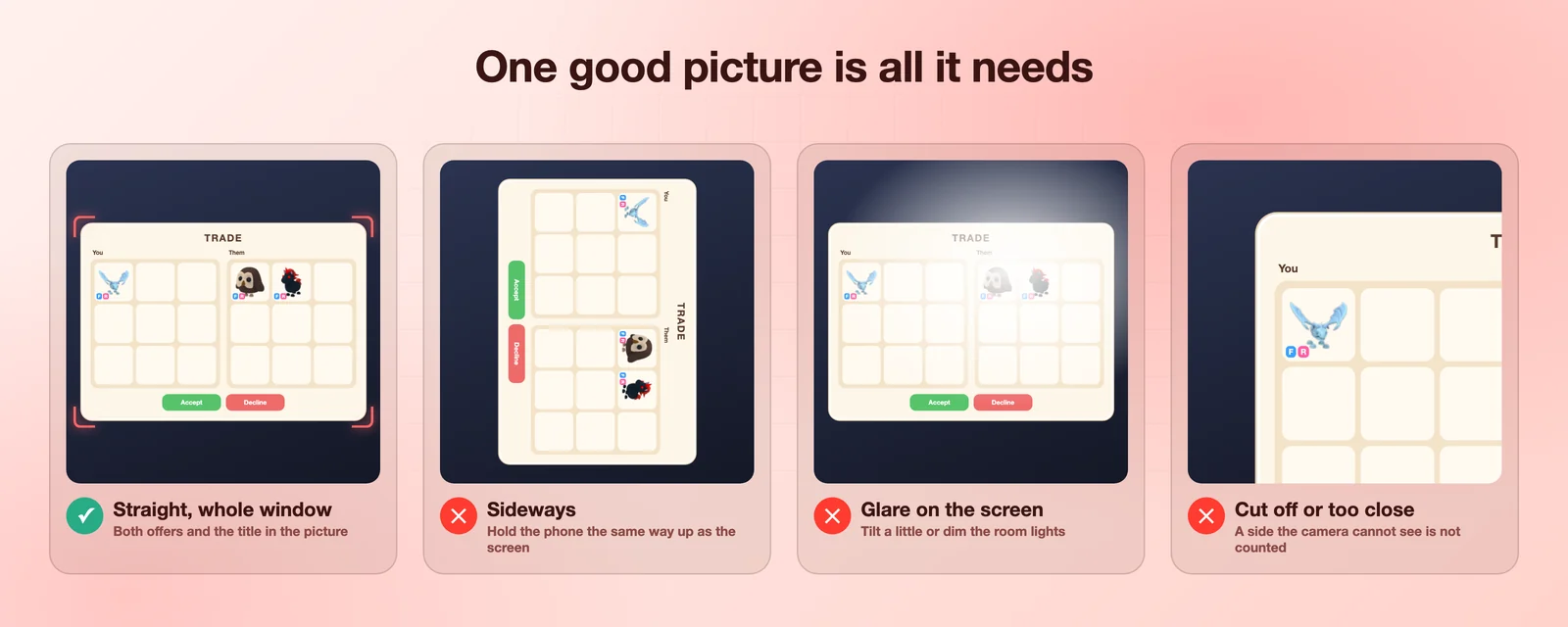
- A real screenshot is better than a photo of a screen. Use one whenever the game is on the same device.
- If you photograph a monitor, hold the phone straight and the same way up as the screen.
- Get close, so the trade window fills most of the picture and both sides are inside it.
- Keep lamps and windows from shining on the screen. A small tilt usually removes the bright spot.
The short version
Take a screenshot. Scan it in the app, or add the pets in the calculator. Check every badge. Then look at the trade window one more time before you accept. If you are still not sure whether a trade is good, how to tell if a trade is fair goes deeper into the thinking behind the number.
Values mentioned are community-based estimates and change over time. Always check current values before trading. AdoptMeValues is an independent fan resource and is not affiliated with Roblox or Adopt Me!.
